APU Software

TrueGain

Gain control with equal-loudness compensation

Sale price $30.00 one-time · Regular price $40.00

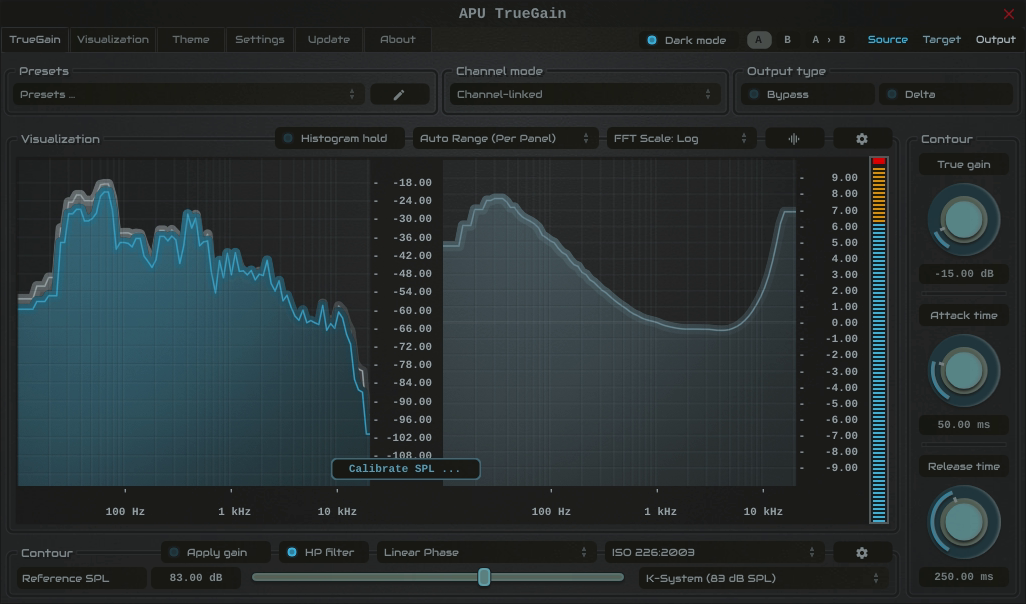
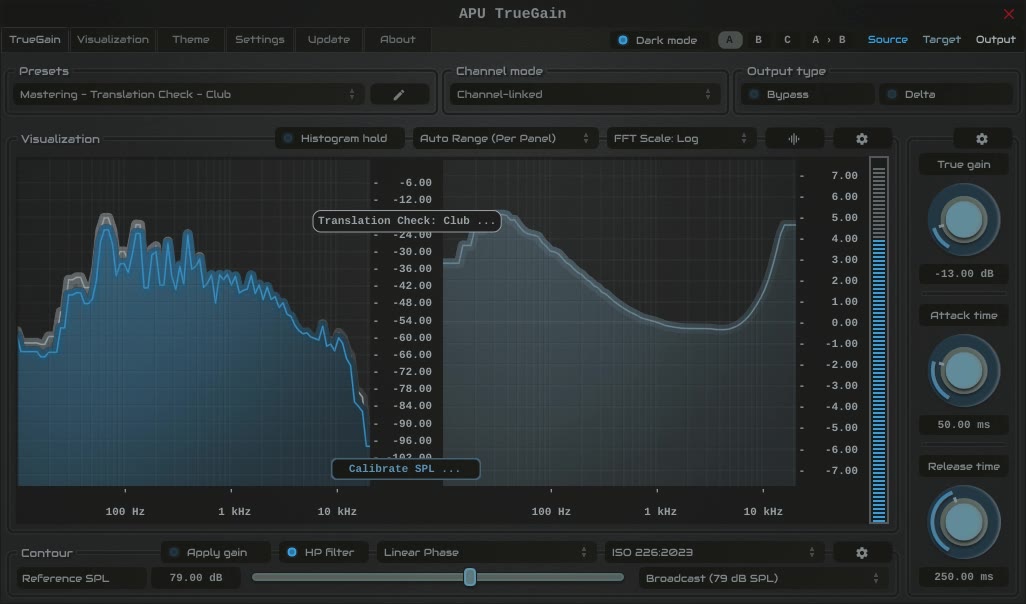
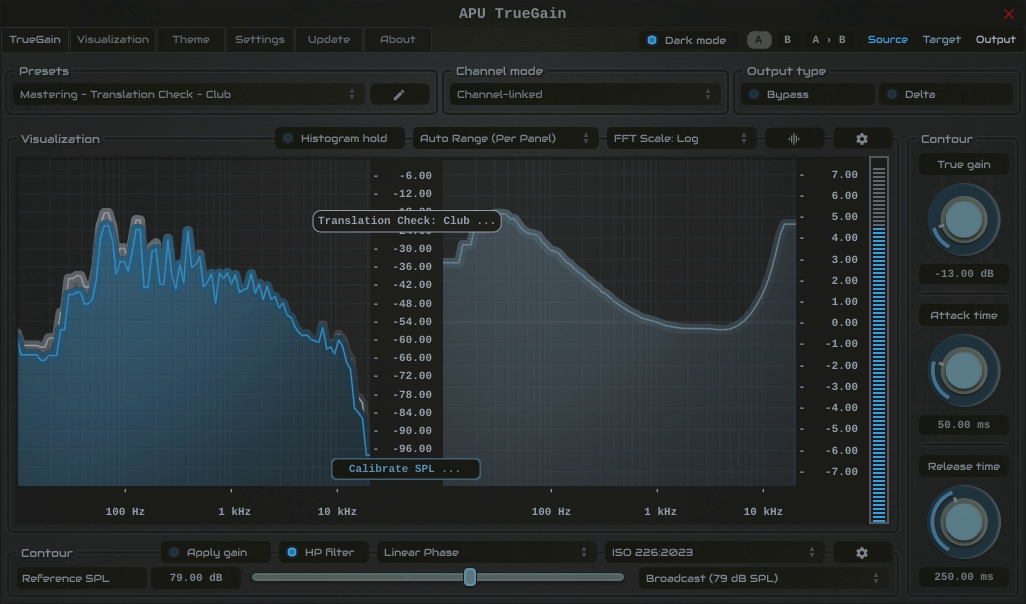
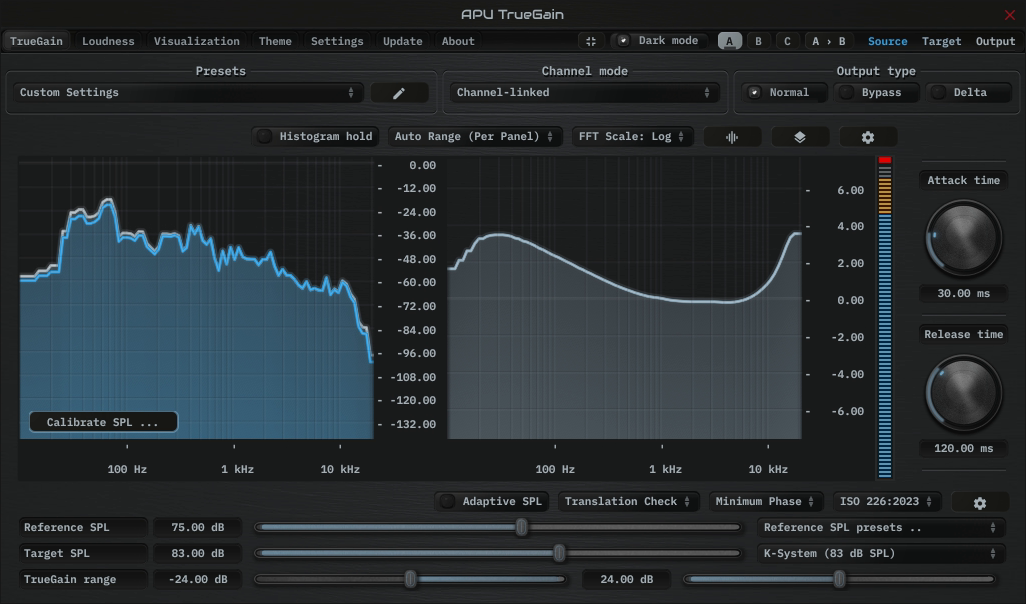
APU TrueGain interface
APU TrueGain demonstration
Fall Sale: 25% Off automatically applied at checkout.

APU TrueGain adjusts gain and frequency balance together, using equal-loudness contours such as ISO 226. The compensation accounts for changes in hearing sensitivity at different listening levels. Adaptive SPL tracks changes in the input level and updates the compensation as the audio plays.

Calibration connects the plug-in’s level estimates to your monitoring setup. A real-time spectrum analyzer shows the source, target, and output signals.

TrueGain can be operated in four modes:

  • Compensated Gain Control

Adjust the True gain parameter to raise or lower the volume with frequency compensation based on your calibrated listening level and the selected contour model.

  • Compensated AGC

Set a target SPL and let TrueGain adjust the gain and frequency compensation as the input level changes. Attack and release controls set how quickly it responds.

  • Translation Check

Use the target SPL parameter to hear the tonal changes predicted by the contour model at a different listening level, without changing your monitoring volume. This is an approximation of level-dependent hearing, not a simulation of a particular room or playback system.

  • Gain Control

Adjust gain without frequency compensation. Gain changes still use the plug-in’s ballistics controls.

Fall Sale
Download (30-day Trial)

Note: Existing customers can apply their loyalty discount on the cart page.
System requirements: macOS 10.14 (x64, ARM), Windows 10 (x86, x64), OpenGL 3.2.
Supported software formats: Standalone application, VST, AU, AAX (Pro Tools 11+).
Calibration

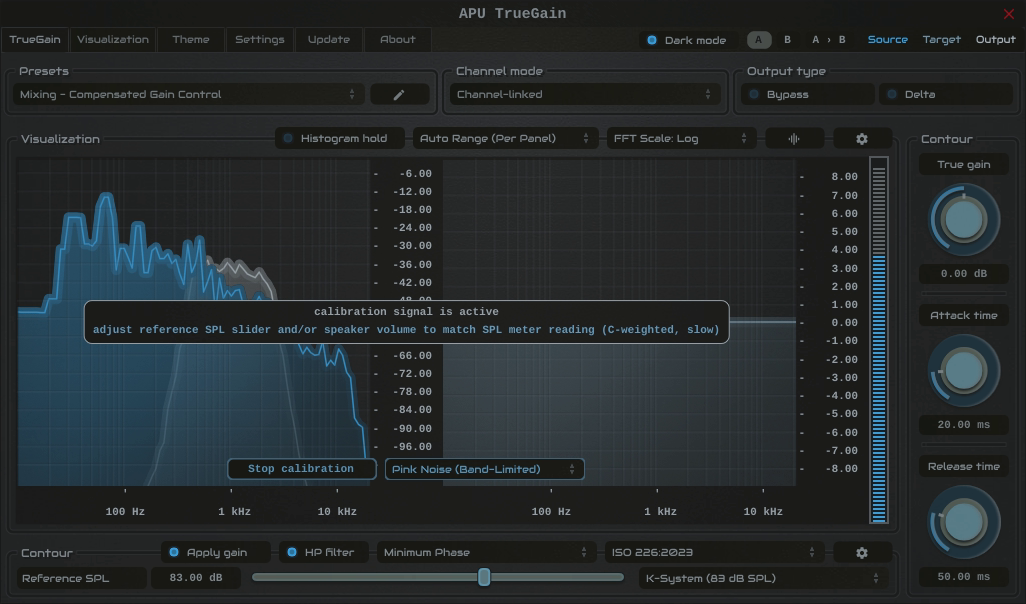
Calibration controlsView full size

Calibration gives TrueGain a reference for the sound pressure level at your listening position.

Calibration for Speaker Monitoring:

Place an SPL meter at your listening position with a C-weighted, slow response setting. Click “Calibrate SPL ...” to play band-limited pink noise; a 1 kHz sine wave option is also available. Adjust your speaker volume and/or the reference SPL parameter until the meter reading matches the reference level in TrueGain.

Calibration for Headphone Monitoring:

Select a headphone calibration signal from the calibration signal type drop-down to play a spoken dialog. Adjust the calibration offset until it sounds like a normal conversation from about 3 feet away in a quiet room. The Reference SPL parameter updates automatically. This is a subjective estimate, not a direct measurement of headphone SPL.

The drop-down next to reference SPL provides a selection of common reference levels.

Back to top

Contour Types

TrueGain applies the difference between two equal-loudness contours, rather than applying a single contour as an EQ curve. It interpolates between stored curves as the reference level and gain change.

ISO 226 (2003)

ISO 226:2003 describes equal-loudness contours for pure tones under controlled listening conditions. These curves show how hearing sensitivity varies with frequency and level. TrueGain’s 2003 contour model supports reference levels from 20 to 120 dB SPL, with interpolation between curves.

ISO 226View full size

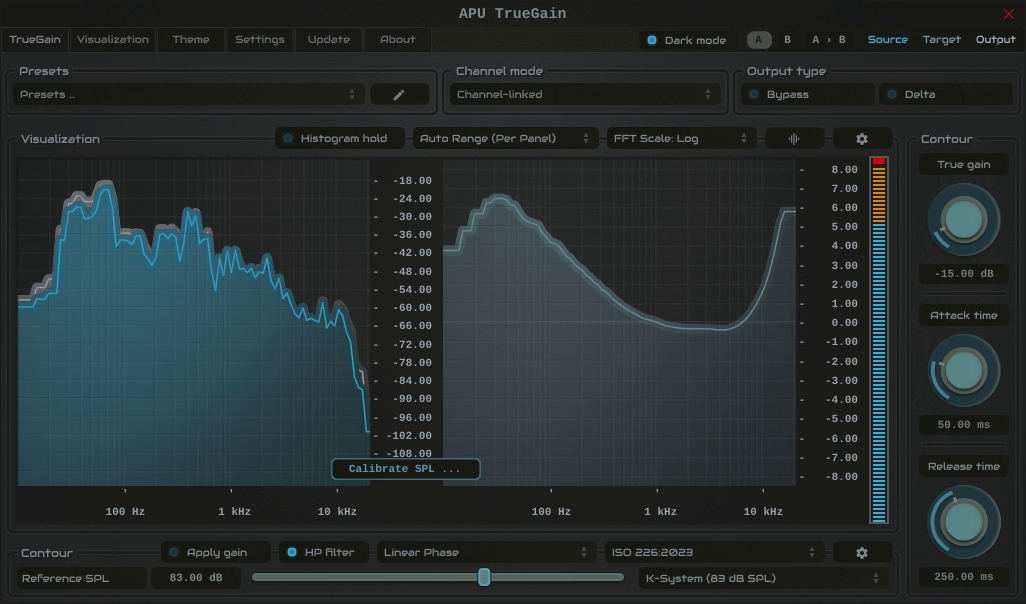
ISO 226 (2023)

ISO 226:2023 is a newer edition of the equal-loudness standard. TrueGain includes a separate 2023 contour model with the same 20 to 120 dB SPL reference range and interpolation controls.

ISO 226View full size

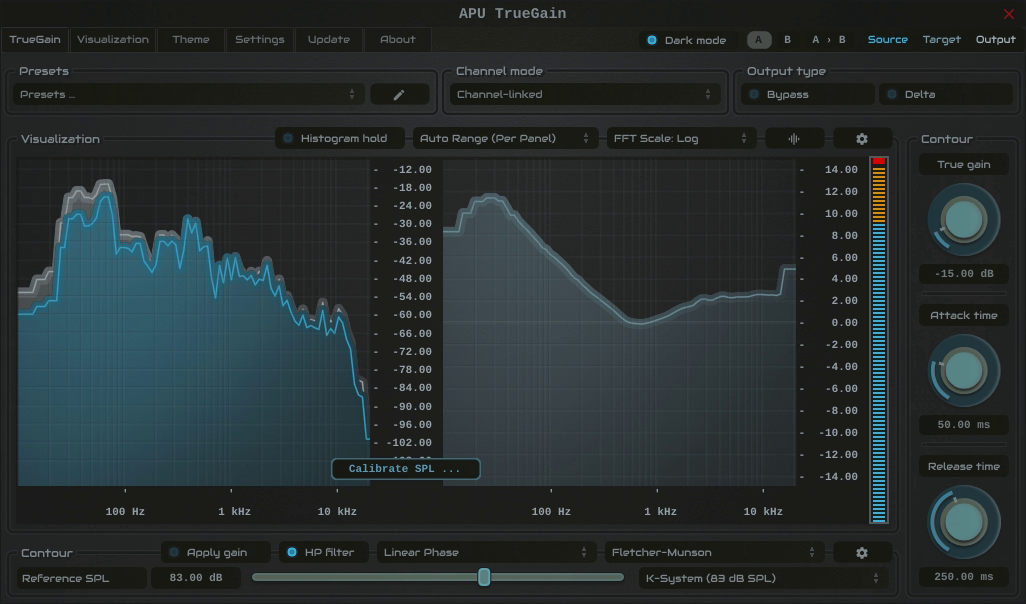
Fletcher-Munson

Fletcher-Munson contours come from the 1933 equal-loudness study. TrueGain uses digitized curves from that work, interpolated across its 20 to 120 dB SPL reference range.

Fletcher-MunsonView full size

Back to top

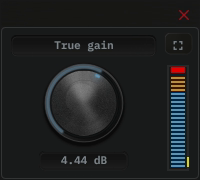
Mini Mode

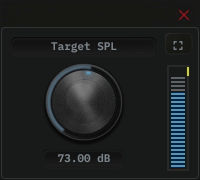
Mini mode keeps the main level control visible in a small window. It shows the True gain knob in Compensated Gain Control mode and the Target SPL knob in Compensated AGC mode.

TrueGain mini mode in Compensated Gain Control TrueGain mini mode in Compensated AGC

Use the mini-mode button in the upper-right of the editor to switch views. The expand button returns to the full editor.

Back to top

Actual size

Shown at its native size. Swipe or scroll to explore the full interface.