APU Software

Loudness Sync

Make one track's loudness follow anotherNEW

Introductory price $30.00 one-time · Regular price $40.00

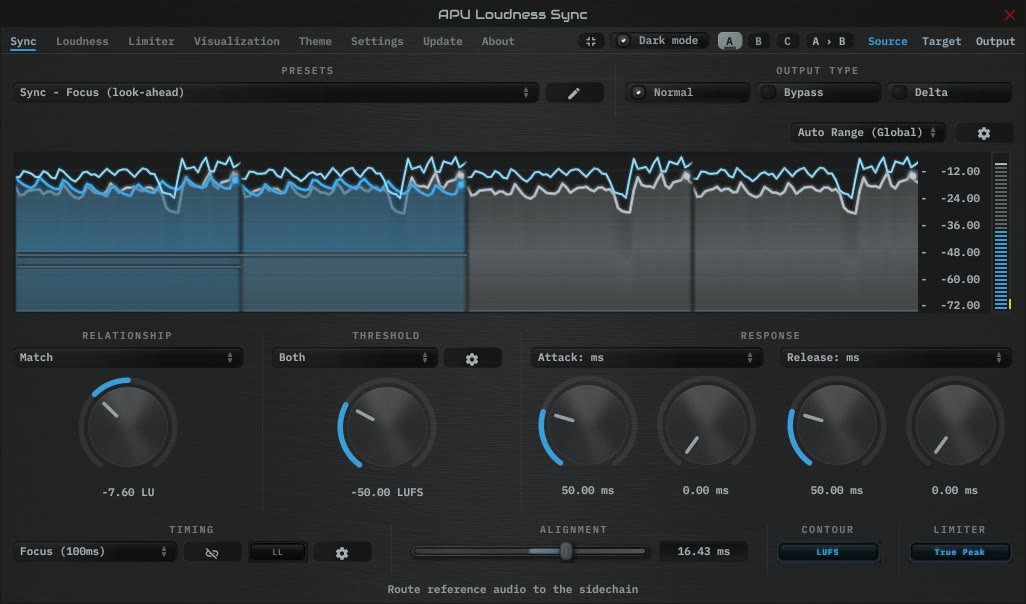
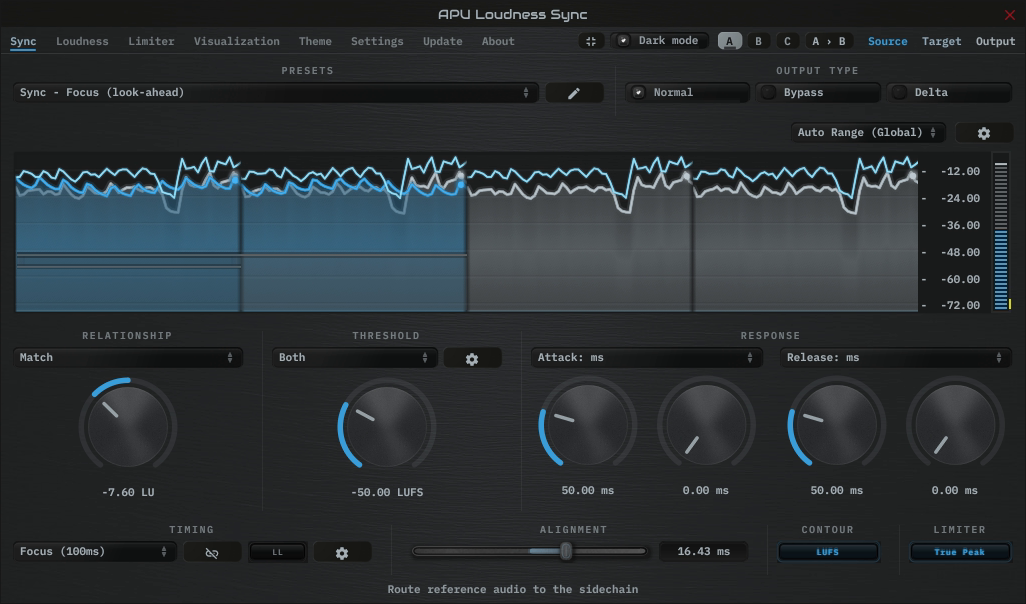
APU Loudness Sync interface
Product demonstration

APU Loudness Sync uses the loudness of one track to control the level of another. Route your reference into the sidechain, then choose whether to match its loudness, stay below it, or stay above it. Offset sets how far apart you want the two signals to be.

For example, a synth layer can follow a track’s builds, breakdowns, and fade-out without having to draw a separate volume envelope. The demo shows this with a layer that changes patches while following the same reference track.

Timing modes range from fast loudness tracking to slower short-term measurement, with an RMS option for traditional level detection. Threshold controls help keep quiet passages from being over-amplified.

Introductory price for a limited time: $30.00 one-time · Regular price $40.00

Download (30-day Trial)

Note: Existing customers can apply their loyalty discount on the cart page.
System requirements: macOS 10.14 (x64, ARM), Windows 10 (x86, x64), OpenGL 3.2.
Supported software formats: VST, AU, AAX (Pro Tools 11+).
Relationship Modes

The Relationship setting determines how Sync adjusts the main input:

  • Match raises or lowers gain to follow the reference.
  • Ceiling reduces gain when the main is louder than the reference target.
  • Floor adds gain when the main is quieter than the reference target.

Offset moves the target above or below the reference. With -3 dB Offset, Match follows 3 dB below the reference, while Ceiling only turns down passages that exceed that level.

All three modes use loudness measurements and follow your attack/release settings. Turn on the built-in limiter if you also need to control output peaks.

Back to top

Low-Level Protection

Following a loud reference can bring up the noise floor of a quiet input. Main protection reduces boost as the input falls below the threshold. The knee sets how gradually the boost is removed.

Reference protection holds the current gain adjustment when the reference falls below the threshold. This lets you stop following the reference below a chosen loudness.

Choose Both to apply both protections, or Off to disable them.

Back to top

Timing and Response

Timing sets the loudness measurement window, from Tight (25 ms) through Deep (3 seconds), with Traditional using 300 ms RMS. Shorter windows follow brief changes more closely; longer windows smooth over more audio.

Attack sets how quickly gain falls, and Release sets how quickly it rises. Alignment shifts the response to the reference earlier or later, using the look-ahead provided by the Timing mode. Low Latency removes the look-ahead delay and disables Alignment.

Channel Link keeps the same gain adjustment across channels to preserve their relative levels. Turn it off to follow the reference separately on each channel.

Back to top

Sidechain Routing

Insert Sync on the track you want to adjust and route your reference to its sidechain. Only the main input is processed; the reference is measured without being mixed into the output. Your DAW’s routing and send gain determine which audio Sync uses as the reference.

Use Normal, Bypass, and Delta to hear the processed audio, the original input, or the difference between them. Sync continues measuring both inputs while you switch.

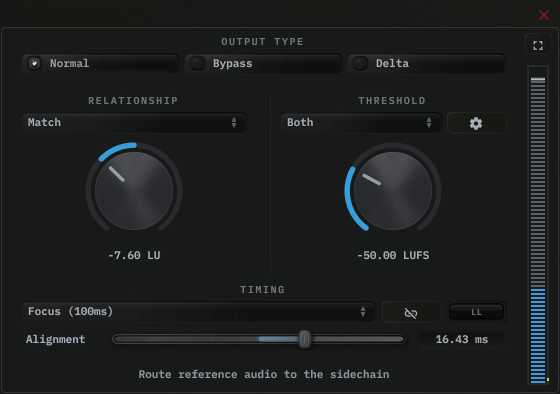
The full editor shows the main and output loudness alongside a lighter reference trace. Once you’ve set the response, mini mode keeps the main controls available in a smaller window.

Loudness Sync compact editorView full size

If the reference becomes unavailable, Sync keeps its last gain adjustment. Use Bypass to hear the original main input.

Back to top

Limiter

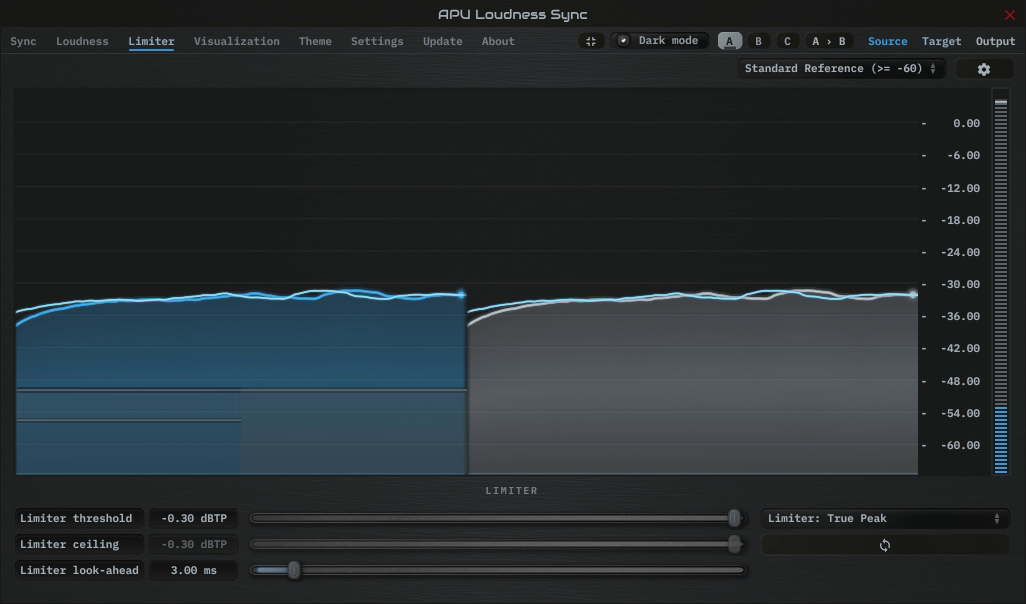
The built-in limiter controls output peaks after Sync’s gain adjustment, such as when Match or Floor raises a quiet input toward a loud reference. It uses look-ahead to detect Peak or True Peak levels above the ceiling and reduce gain before they arrive.

The limiter is off by default, so Sync leaves the signal untouched until you choose a limiter mode.

LimiterView full size

Back to top

Actual size

Shown at its native size. Swipe or scroll to explore the full interface.